


Dramaqueen
Member
How to set Hisense 75H8G network? The first time you turn on Hisense 75H8G, there is a guided setup to make it easy to connect
Hisense 75H8G to the Internet and complete the setup of Hisense 75H8G. If you wanna establish a network connection, just follow the steps:
Establish a wired network connection
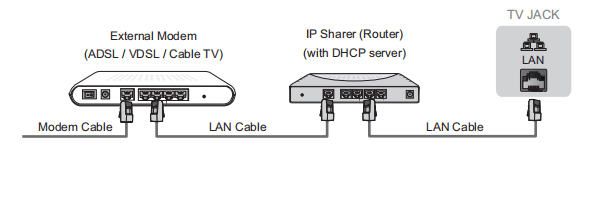
Automatically obtain an IP address
Manually enter the IP address
1.Enter the IP settings to select Static.
2.Enter the IP address, Gateway, Network prefix length, DNS 1 and DNS 2 in the menu.
Establish a wireless network connection
The TV can directly receive network signals via wireless router.
Close the network connection
Enjoy your TV!
Hisense 75H8G to the Internet and complete the setup of Hisense 75H8G. If you wanna establish a network connection, just follow the steps:
Establish a wired network connection
Step1.Press the Home button on the remote control, and select the icon to select Settings to enter the Settings menu.
Step2.Select Network & Internet.
1.If you connect to the wired network, the TV will automatically obtain an IP address and connect to the network.
NOTE: The default option of IP Settings Mode is DHCP.
2.If the connection fails, “Not Connected” will display for the Ethernet status. Retry or enter the IP settings, and select Static to input the information again.
Manually enter the IP address
1.Enter the IP settings to select Static.
2.Enter the IP address, Gateway, Network prefix length, DNS 1 and DNS 2 in the menu.
Establish a wireless network connection
The TV can directly receive network signals via wireless router.
1.Turn on your Wi-Fi.
2.The list of networks will display automatically.
3.Select a wireless network from the list, input the password.
4.If the network connection does not appear in the list, select See all to display all the list, or select Add new network to input a Wi-Fi name, select the type of security mode, and enter password.
Close the network connection
Unplug the network cable or turn off your Wi-Fi. The network connection will close.
Enjoy your TV!
Now that you’ve completed the first-time setup, your Home screen is your starting point for using your TV. Your Hisense TV provides a variety of entertainment options, so you’ll always find something new. Use your TV to watch live channels, access video on demand to watch movies, and much more.


