


How to Install Migu Video on Konka Smart TV
Smart TVs today offer powerful features, and everyone wants to enjoy a wide variety of video content on the big screen. If you own a Konka TV and want to download apps like Migu Video, here’s a step-by-step guide to help you out.
Method 1: Download from Konka TV’s Built-in App Store
1. Connect to a stable network – Go to the TV’s home screen, open Settings > Network & Connection, and choose either Wi-Fi or Wired.
2. Open the App Store – Use your remote to find and open the App Store or Market icon.
3. Search for Migu Video – Type “Migu Video” in the search bar and press enter.
4. Install the app – Select the official Migu Video app, click Install, and wait for the download to complete.
Method 2: Download via a Third-Party App Store
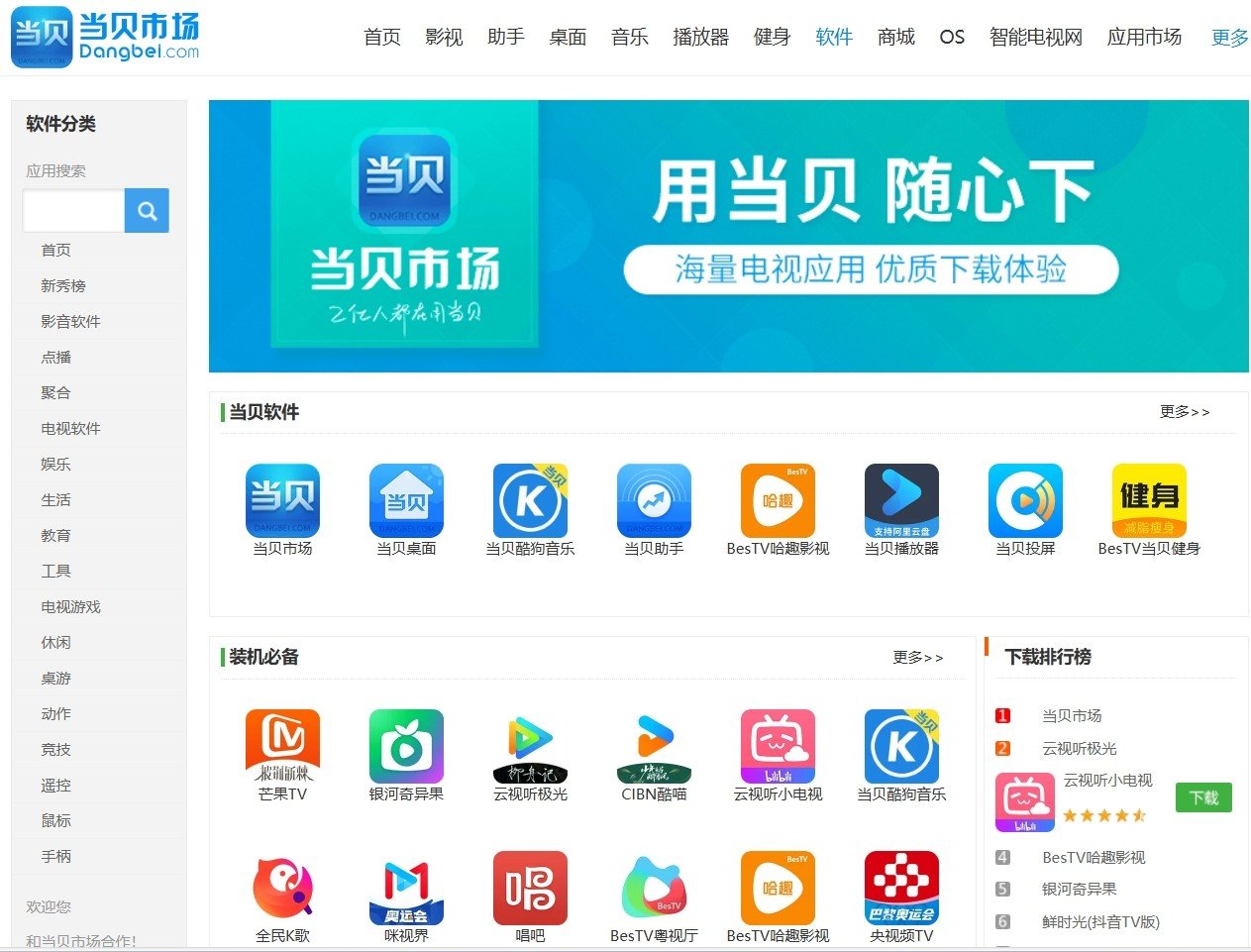
1. Download a third-party app store – On a computer, search for a trusted app store like Dangbei Market, download its APK file, and copy it to a USB drive.
2. Connect the USB to your TV – Plug the USB into your Konka TV’s USB port.
3. Enable “Unknown Sources” – Go to Settings > Security and turn on Unknown Sources to allow installations from external sources.
4. Install the app store – Open File Manager or App Assistant, locate the APK file on your USB, and install it.
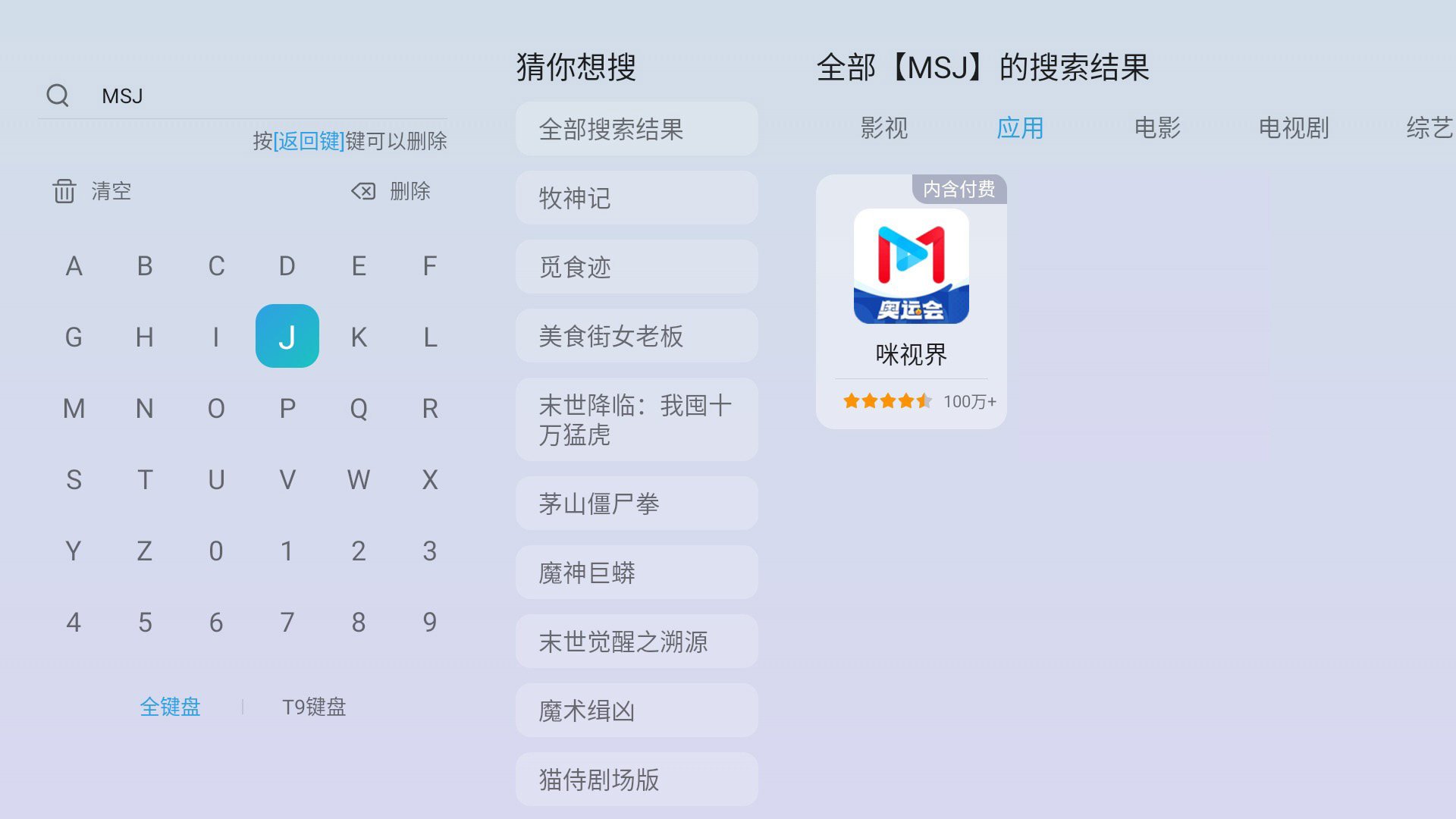
5. Search for Migu Video – Open Dangbei Market, search for “MSJ” (short for Migu Video’s TV app, MiShiJie), and download it.
6. Launch and enjoy – Once installed, open the app, sign in or register, and start watching!
Now you’re all set to stream your favorite shows on the big screen. Happy watching!
Smart TVs today offer powerful features, and everyone wants to enjoy a wide variety of video content on the big screen. If you own a Konka TV and want to download apps like Migu Video, here’s a step-by-step guide to help you out.
Method 1: Download from Konka TV’s Built-in App Store
1. Connect to a stable network – Go to the TV’s home screen, open Settings > Network & Connection, and choose either Wi-Fi or Wired.
2. Open the App Store – Use your remote to find and open the App Store or Market icon.
3. Search for Migu Video – Type “Migu Video” in the search bar and press enter.
4. Install the app – Select the official Migu Video app, click Install, and wait for the download to complete.
Method 2: Download via a Third-Party App Store
1. Download a third-party app store – On a computer, search for a trusted app store like Dangbei Market, download its APK file, and copy it to a USB drive.
2. Connect the USB to your TV – Plug the USB into your Konka TV’s USB port.
3. Enable “Unknown Sources” – Go to Settings > Security and turn on Unknown Sources to allow installations from external sources.
4. Install the app store – Open File Manager or App Assistant, locate the APK file on your USB, and install it.
5. Search for Migu Video – Open Dangbei Market, search for “MSJ” (short for Migu Video’s TV app, MiShiJie), and download it.
6. Launch and enjoy – Once installed, open the app, sign in or register, and start watching!
Now you’re all set to stream your favorite shows on the big screen. Happy watching!